Adding a PowerG Wireless Device in Sonitrol CORE
PowerG devices must be added to the Platform and then enrolled.
Prerequisites
Input configuration of the device. For more information, see Input Configuration For PowerG Devices.
- Log on to the Sonitrol CORE.
- From the left navigation pane, click Hardware.
-
From the top navigation bar, click Profiles.
- In the Hardware Profiles page, find and select the site profile to which you wish to add a device.
-
Click Edit on the profile tile. You can also click
 and select Edit from the list.
 -
In the Edit Profile page, click the Configurations tab.
-
Go to the PowerG Wireless Device section, click New PowerG Wireless Device.
-
On the Add New PowerG Wireless Device page, complete the details.
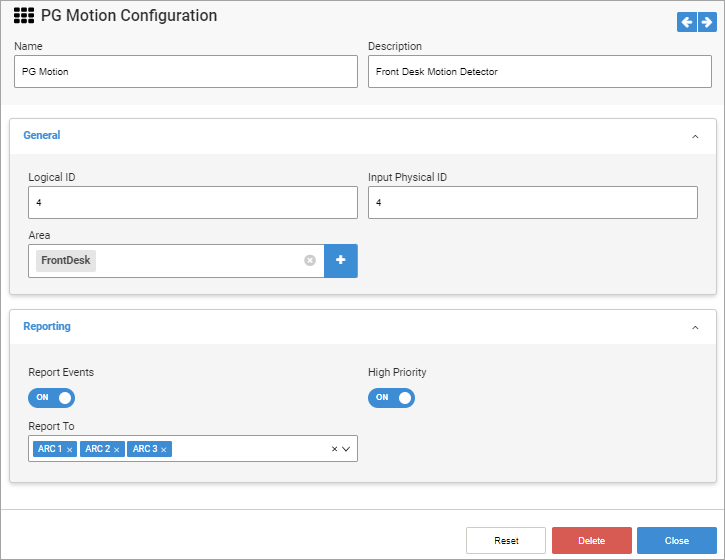
Field
Description
Name
Enter a unique and meaningful name.
The name should contain only alphanumeric characters and no spaces.
Up to 255 characters can be used.
Description
Enter more information about the PowerG host.
General
Logical ID
Enter a unique identifier for the device connected to the S1000 Controller. Allowed range is 0-254.
Input Physical ID
Enter the ID assigned to the input on this device from the input configuration table.
Note: This value must match the ID assigned to the input. The value provided here will be assigned as the physical ID to the auto created input.Area
Click + to find and select the area where the device is located.
Reporting
Report Events
Turn on the toggle to record events.
Report To
Select the connection paths where the recorded events will be reported. Select the checkbox next to the option on the drop-down list or select the Select All checkbox.
High Priority
Turn on the toggle to assign high priority to this device.
- Click Create.