Viewing User Details
If you have administrative privileges, you can view the details of all the users in your organization. If you administer more than one organization, you can view users from all the organizations that you administer. You can view the user details in either list view or tile view.
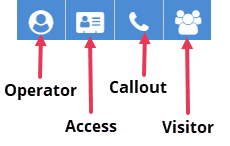
In the Users page, users are grouped by their organizations. Use the easy access buttons to filter the users' list based on role types:
Click  to view organizations that do not have any users added.

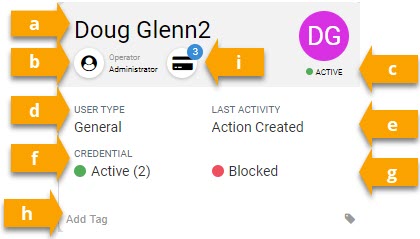
Each user tile displays summary details. You can click on the tile to view additional details or to edit the user details.
|
Label # |
Description |
|---|---|
|
a |
User's name |
|
b |
User's role and credentials If a user has more than one role or credential and number is displayed next to the icon for role type and credential. |
|
c |
Whether the user is active, inactive or blocked. |
|
d |
User type |
|
e |
The last activity this user performed. |
|
f |
The number of credentials assigned to the user. |
|
g |
The status of the credential. The values are Blocked, Deleted, Unassigned or Created. |
|
h |
Any tags associated with the user. |
|
i |
The number of access cards assigned to a user. |
You can use the filtering option to look up information about specific users . Click  to select or hide the filter options. Click
  in the column header to refine the users list to be more precise.
The following fields are available in the list view.
-
Username
-
Organization
-
Phone Number
-
Gender
-
UserType
-
MFA Method
-
First Name
-
Last Name
-
Email
-
Extended Time
-
Provider
-
Provider ID
-
Tags
-
SIP Number
-
Custom Fields