Making Changes to the S1000 Template
The following schematic displays various uses of the S1000 Controller.
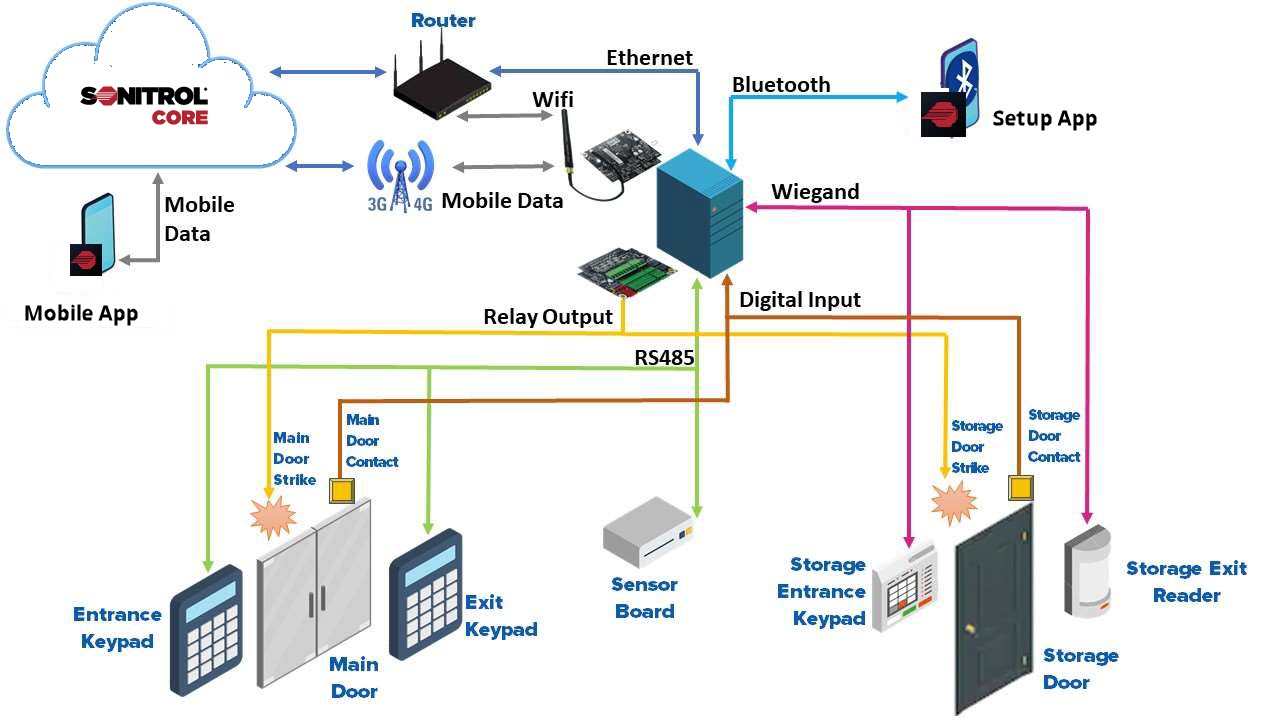
- Click Hardware on the left navigation pane.
-
Click Profiles on the top navigation bar.
- In the Hardware Profiles page, find and select the profile you wish to make changes to.
-
Click Edit on the profile tile.
or
Click
 and select Edit from the list.
 -
In the Edit Profile page, click the Configurations tab.
This is normally displayed by default.
- In the S1000 section, click configure on the specific S1000 tile.
-
On the S1000 Configuration dialog box, complete the general details of the S1000.
Field
Description
Name
Enter a unique name for each S1000 Controller.
Description
Enter more details about the S1000 Controller.
Firmware
To update the S1000 firmware, click ... to find and select the firmware file on your computer.
Reboot after Firmware update
Turn on the toggle to automatically reboot the S1000 after the firmware has been updated.
Default Service User
Turn on the toggle to enable the default service user to access the controller.
-
Complete the details on the Core tab.
Field
Description
BLE Access Point
Turn on the toggle to enable the Bluetooth receiver of the S1000 Controller.
BLE PIN
Enter a PIN for the Bluetooth receiver.
Operation Mode
Select the operation mode from the drop-down list.
Available options:
- Default - use the Sonitrol proprietary operation settings.
- EN Grade 3 - use the EN 50131 compliant Grade 3 operation settings.
- EN Grade 4 - use the EN 50131 compliant Grade 4 operation settings.
- CCC - use cyber security compliance certificate operation settings.
- Custom - use custom mode operation settings.
Area
Select an area, from the drop-down list, where the S1000 Controller is installed.
Report Events
Turn on the toggle to record events.
High Priority
Turn on the toggle to assign high priority to this device.
Report To
Select the connection paths where the recorded events will be reported. Select the checkbox next to the option on the drop-down list or select the Select All checkbox.
Report Timer Change To
Select the connection paths where the timer changes will be reported. Select the checkbox next to the option on the drop-down list or select the Select All checkbox.
Time Sync Period (hr)
Enter the time in hours to synchronize.
SD Card Configuration
Turn on the toggle to enable configuration of an SD Card.
SD Card Event Queue
Turn on the toggle to store events on an SD Card, which allows for more events to be stored.
If the toggle is turned off, events are stored on the local device memory and storage capacity will be reduced.
SD Card Putty Log
Turn on the toggle to store Puttly logs on an SD card and increase the storage. If the toggle is turned off, the Putty logs are stored on the local device and storage capacity will be reduced.
Allow Config and Commands without Engineer
Turn on the toggle to allow configuration changes and commands to be actioned without an engineer user being logged on.
It is turned off by default.
Allow Input Self-Test while Arming
Turn on the toggle to allow input self-testing while arming.
Language
Select a language for the user interface from the drop-down list.
Keypad Character Set
Select a keypad character set from the drop-down list.
Keypad Login Mode
Select the keypad login mode from the drop-down list to be either PIN Only or User ID and PIN.
Duress PIN
Turn on the toggle to enable duress PIN.
Duress Mode
If Duress PIN is enabled, select the duress mode from the drop-down list to be either Increment PIN or Append PIN with digit.
Duress Digit
If Append PIN with digit is selected as the Duress Mode, enter the number to be entered after a PIN to identify it as a duress PIN.
Card Suspension due to Invalid Access (mins)
Enter the time in minutes that an access card is suspended due to invalid access.
The default value is 5 minutes.
Update Keypad Alarm LED
Turn on the toggle to update the keypad alarm LED.
Suspect Activation Counter
Enter the number of times an alarm trigger is sent before it stops.
Alarm Confirmation Time (mins)
Enter the time in minutes that an alarm signal is received before an alarm message is triggered.
Custom Area Mode 1 - Name
Enter the first custom user access on the control panel.
Custom Area Mode 1 - Duration (mins)
Enter the time in minutes that Custom User 1 is allow to have, to log into the area.
Custom Area Mode 2 - Name
Enter the second custom user access on the control panel.
Custom Area Mode 2 - Duration (mins)
Enter the time in minutes that Custom User 2 is allow, to have to log into the area.
Auto Extend PIN Validity
Turn on the toggle to automatically extend the validity of a PIN.
Extend PIN Validity (days)
Enter the time in days to extend the PIN validity.
Sequential Alarm Mode - BS8243
Turn on the toggle to enable sequential alarm mode to conform with the BS 8243 standards.
Late to Open Wait Time - Duration (min)
Enter the duration to wait in minutes before an event is triggered that an armed area is not disarmed at the scheduled time.
-
If disarmed before the Late to Open Wait Time duration, an EarlyToOpenEvent will be raised.
-
If disarmed after the Late to Open Wait Time duration, an LateToOpenEvent will be raised.
If not specified, the default value is 60 minutes.
Early To Close Wait Time - Duration (min)
Enter the duration to wait in minutes before an event is triggered that the site is armed before the scheduled time.
-
If armed before the Early to Close Wait Time duration, an EarlyToCloseEvent will be raised.
-
If armed after the Early to Close Wait Time duration, an LateToCloseEvent will be raised.
If not specified, the default value is 60 minutes.
Early To Open Wait Time - Duration (min)
Enter the duration to wait in minutes before an event is triggered that the site is disarmed before the scheduled time.
Late to Close Wait Time - Duration (min)
Enter the duration to wait in minutes before an event is triggered that the site is armed later than the scheduled close time.
Dual User Timeout (sec) - EN 60839
Enter the time period to grant access in seconds when the controller is in dual user mode. This setting is required to conform with EN 60839 standards.
By default, the timeout value is 10 seconds. The minimum time out value is 10 seconds and maximum value is 120 seconds.
-
Complete the details on the Firmware tab.
This tab enables you to issue firmware commands and make updates to the firmware directly from Sonitrol CORE to the S1000 Controller.
Field
Description
S1000
Click ... to find and select the appropriate S1000 firmware version.
Various devices
Devices connected to the S1000 are listed here.
Click ... to find and select the appropriate firmware version for each listed device.
Reboot after Firmware update
Toggle OFF or ON to reboot the S1000 Controller firmware update.
Upgrade Device Firmware
Toggle OFF or ON to upgrade the device firmware.
-
Complete the details on the On-Board Ethernet tab.
Select an option from the drop-down list.
Option
Description
Leave Existing
This is the default option.
This means that no on-board Ethernet settings are downloaded to the S1000 Controller. Settings programmed using the keypad or mobile app are retained.
Enable
Sonitrol CORE downloads and overwrites any on-board Ethernet settings on the S1000 Controller. Other fields display if this options is selected.
- DHCP - toggle OFF or ON automatic configuration of the controller Ethernet.
- Disable MAC and ARP Processing - toggle OFF or ON.
- Enable SNMP - toggle OFF or ON.
Disable
The Ethernet port on the S1000 Controller is disabled.
-
Set up the connection paths to the S1000 Controller on the Paths tab.
Sonitrol CORE provides consistent and reliable connections through path redundancy. Connection priorities are divided into primary, secondary and tertiary. Sonitrol CORE automatically switches paths if the previous path is not available.
Select an option from the drop-down list.
- Leave Existing - Sonitrol CORE will not download any path settings to the S1000 Controller. Settings programmed using the keypad or mobile app are retained.
- Enable - Sonitrol CORE downloads and overwrites any path settings to the S1000 Controller.
If Enable is selected, for each primary, secondary and tertiary path, enter the following details:
Field
Description
Heartbeat Type
Select the heartbeat type from the drop-down list.
Available options:
- Daily Time
- Periodic
- No Heartbeat
If Periodic or Daily Time is selected, enter the Heartbeat Timer in hours and minutes.
For Contact ID, the default heartbeat type is Periodic.
Path Type
Select the path type from the drop-down list.
Available options:
- Sonitrol
- Contact ID
- SIA - This option is available for primary and secondary connections.
- EDM Audio - Select this option on the tertiary path to stream audio to a central station.
Click Add path to include a primary, secondary and/or tertiary path.
Click
 to edit an existing primary, secondary or tertiary path.
Click
 to drag-and-drop a path tile to move the selected path tile to a different position.
Click
 to delete the selected path tile.
Click Update after changes have been made to the path.
Connection
Select the network connection type from the drop-down list.
Available options:
- Ethernet (TCP) - Transmission Control Protocol for built-in Ethernet connections.
- Ethernet Expansion (TCP) - TCP for expansion card Ethernet connection.
- Ethernet Expansion (UDP) - User Datagram Protocol for expansion card Ethernet connection.
- GPRS (TCP) - TCP mobile connection.
- PSTN - Public Switched Telephone Network connection.
- WIFI (TCP) - TCP mobile connection.
Address
Enter the IP address of the path.
Port
Enter the port number associated with the path connection.
Connection Check (mins)
Enter the time in minutes when the connection is verified.
Set as Primary
Select the checkbox for this path connection to be set as the default path.
Note: After deleting an ARC path, it is recommended that you run the Resync status command from the Command widget in your dashboard and refresh the browser to view accurate ARC path status. -
Complete the details on the Battery tab.
Field
Description
Battery
Select the battery type from the drop-down list.
Available options:
- No Battery
- Lead Acid
- Lithium Ion (3 Cell)
- Lithium Ion (4 Cell)
- Lithium Iron Phosphate.
If a battery option is selected (not No Battery), the other fields are available for input.
Capacity (mAh)
Enter the storage capacity available for the installed battery.
Voltage Charge Cycle (mV)
Standby Voltage (mV)
Normal Charge Current (mA)
Power Loss Reporting Delay (mins)
Enter the time in minutes for power loss reporting delays.
Temperature Sensor
Select the temperature sensor from the drop-down list to be either None or KTY 100 (a standard temperature sensor).
-
Complete the details on the Temperature tab.
Field
Description
CPU Temperature - Lower Bound (°C)
Enter the lowest temperature that is allowed for the CPU before an alarm is triggered.
CPU Temperature - Upper Bound (°C)
Enter the highest temperature that is allowed for the CPU before an alarm is triggered.
On Board Temperature - Lower Bound (°C)
Enter the lowest temperature that is allowed for the board before an alarm is triggered.
On Board Temperature - Upper Bound (°C)
Enter the highest temperature that is allowed for the board before an alarm is triggered.
Enable External Temperature Reading
Toggle OFF or ON to enable external temperature readings.
External Temperature - Lower Bound (°C)
Enter the lowest external temperature that is allowed before an alarm is triggered.
External Temperature - Upper Bound (°C)
Enter the highest external temperature that is allowed before an alarm is triggered.
-
Complete the details on the Alarm Latching tab.
Field
Description
Latch Tamper
Toggle OFF or ON to permanently trigger a tamper alarm.
Latch Offline
Toggle OFF or ON to permanently trigger an offline alarm.
Latch AC Fail
Toggle OFF or ON to permanently trigger an AC Fail alarm.
Latch Battery Fail
Toggle OFF or ON to permanently trigger a battery fail alarm.
Latch Battery Charger Fail
Toggle OFF or ON to permanently trigger a battery charger fail alarm.
Latch ARC Connection Fail
Toggle OFF or ON to permanently trigger a Sonitrol CORE connection fail alarm.
Latch Temperature Fail
Toggle OFF or ON to permanently trigger a temperature fail alarm.
Latch Signal Fail
Toggle OFF or ON to permanently trigger a signal fail alarm.
Latch Device Substitution
Toggle OFF or ON to permanently trigger a device substitution alarm.
Latch Too Many Invalid Login Attempts
Toggle OFF or ON to permanently trigger an invalid login alarm.
Latch Fault
Toggle OFF or ON to permanently trigger a fault alarm.
-
Complete the details on the Serial tab.
For Non-Isolated - RS485 / RS 232 (optionally isolated) serial port (PL5) of the S1000 Controller
For Isolated - RS485 serial port (PL6) of the S1000 Controller
For Expansion 1 - J13 and J14 of the S1000 Controller
For Expansion 2 - J11 and J12 of the S1000 Controller
For Expansion 3 - J4 and J5 of the S1000 Controller
select the options:
Field
Description
Protocol Type
Select the protocol type from the drop-down list.
Baud Rate
Select the data rate in bits per second, from the drop-down list.
Parity
Select Odd or Even or None parity from the drop-down list.
Stop Bits
Select the stop bits from the drop-down list.
-
Complete the details on the Audio tab.
- Toggle OFF or ON to Download Audio.
-
For each listed Playback, click ... to find and select and audio file to upload.
Only
*.spwand*.mp3files can be uploaded.Blank or empty audio files cannot be uploaded.
-
If you are using legacy systems, you can configure Sonitrol CORE to ignore the Facility code and only use the card number printed on the access card to determine access permissions. Two types of cards can be configured based on the card length. Complete the following details on the Card Format tab.
Caution: This option is for specific legacy systems where the Facility Code is not used for credential authentication. Disabling this security feature may allow unauthorized access if another site uses the same card numbers.Field
Description
Source Card Bit Length
Enter the total card bit length.
Read Start Bit
Enter the bit from which the card format must be read.
All the bits before this bit will be ignored while determining access permissions.
Read Bit Length
Enter the length of the bits that must be read.
Repeat the steps for the second card format.
Example:If configuring a standard 26-bit Weigand card format to ignore 8-bit facility code, set the values as:
-
Source Card Bit Length = 26
-
Read Start Bit = 9
-
Read Bit Length = 16
-
-
Complete the details on the Logging tab.
Select if logging can be controlled using the Stream Logs command, from the drop-down list.
Select either to Enable on Startup or Disable on Startup.
If Enable on Startup is selected for logging, toggle OFF or ON logging for each the listed functions.
- Click Close.