Report Designer Options

Click  above the toolbox to select a menu option.
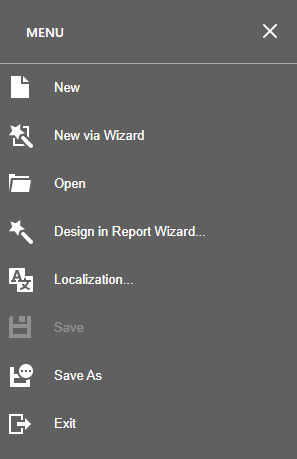
|
Option |
Description |
|---|---|
|
New |
Create a new custom report. |
|
New via Wizard |
Create a new custom report using the Report Wizard. |
|
Open |
Find and display an existing custom report. |
|
Save |
Save the newly created report. |
|
Save As |
Save the changes made to an existing report. |
|
Exit |
Close and exit the Report Designer. |

|
Option |
Description |
|---|---|
|
|
Remove the currently selected item(s) to the clipboard, then paste them into a document. |
|
|
Duplicate the currently selected item(s) to the clipboard, then paste them into a document. |
|
|
Insert the current clipboard contents into the document. |
|
|
Delete the currently selected item. |
|
|
Set the magnification of the main Report Designer area. Select a preset magnification level from the drop-down list or use the + / - to increase or reduce the current magnification by 5%. |
|
Validate Bindings |
When changes are made to the data source or any data fields in expressions or calculated fields, confirm that the correct data is being used. |
|
Full Screen |
Enlarge Report Designer to use the full screen of your monitor. Click the icon again to reduce the Report Designer to the default size. |



Drag-and-drop a toolbox option from the toolbox to a specific location within your custom report.

Icons are listed in the table below from left to right, top to bottom.
|
Option |
Description |
|---|---|
|
Label |
Insert a label text object. |
|
Checkbox |
Insert a checkbox at a specific location in the report layout. |
|
Rich Text |
Insert a text object that supports individual formatting. For example, a text box which includes several paragraphs with a number of formatting options such as headings, body, bold, italics. |
|
Picture Box |
Insert a box that contains a selected image, for example, a company logo. After the picture box is positioned, use the Properties pane > Data > Image URL to enter the path to the image file. Note: Reports created using Image Source in releases earlier than v8.1 must be updated with the Image URL to ensure that the images load correctly.
|
|
Panel |
Insert a holding object for other objects, similar to a box. Use a panel to group multiple objects that are close together on the report layout so that can be easily moved as a single unit. Create the panel first, then create the other objects and move them onto the panel to create an association. Remove objects from the panel by moving them outside of the panel box. If you delete a panel, all objects contained in the panel are also deleted. |
|
Table |
Insert a group of holding objects that are connected and treated as a table with each cell functioning as a panel object so that it can contain other objects. To edit, click in a cell to then use the Properties pane to format it. Deleting a cell / row / column / table also deletes all other contained objects. You can also add expressions to a cell using the Expression Editor. |
|
Character Comb |
Insert a textbox where each character is separated into its own textbox. This would be used when you need a person to enter details when filling in a form. This ensures that there is one letter / number in each small textbox. |
|
Line |
Insert a line into the report layout. |
|
Shape |
Insert a shape into the report layout. By default, the shape is initially an ellipsis. To change the shape once you have added it to the report layout, use the Properties pane Shape Tasks section to select a different Shape from the drop-down list. |
|
Barcode |
Insert a barcode object which can be read by barcode readers. Alphabetic characters must be capitalized so that they are considered valid characters for barcode readers. Use the Properties pane Bar Code Tasks section to format the barcode and choose the Symbology. |
|
Chart |
Insert a chart object to represent information in a graphical format. Use the Properties pane Chart Tasks section to format. |
|
Gauge |
Insert a gauge or dial chart to represent information as a reading on a dial. Use the Properties pane Gauge Tasks section to format. |
|
Sparkline |
Insert a sparkline chart (a small line chart) to represent trends in a series of values. For example, to highlight maximum and minimum values. Use the Properties pane Sparkline Tasks section to format. |
|
Cross Tab |
Insert a cross tab table to compare results and examine relationships within the data. Use the Properties pane Cross Tab Tasks section to format. |
|
Sub-Report |
Insert a minor report into the overall report. Use the Properties pane Sub-Report Tasks section to format. |
|
PDF Content |
Insert a PDF file into the report. Use the Properties pane PDF Content Tasks section to format. |
|
PDF Signature |
Insert a PDF Signature box to allow for a signature. Use the Properties pane PDF Signature Tasks section to format. |
|
Table of Contents |
Insert a table of contents into the report. Use the Properties pane Table of Contents Tasks section to format. |
|
Page Info |
Insert page information into the report. Use the Properties pane Page Info Tasks section to format. |
|
Page Break |
Insert a page break between pages or sections of a report layout. Use the Properties pane Page Breaks Tasks section to format. |
|
Cross-band Line |
Insert a solid colored rectangular object which can be placed across multiple bands. Use the Properties pane Cross-Band Line Tasks section to format. |
|
Cross-band Box |
Insert a transparent rectangular object which can be placed across multiple bands. Use the Properties pane Cross-Band Box Tasks section to format. |