Making Changes to a Custom Report
You can make a number of changes to a custom report from the tile displayed on the Advanced Reports page.
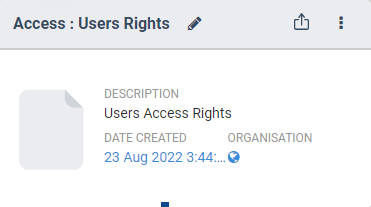
A number of default advanced report templates (for example, Visits Report) are made available for you to use and customize as needed.
The default advanced report templates cannot be changed. To customize a default advanced template, make a copy of it then change the copy to suit your needs.

There are 2 ways to view a report:
-
Click Reports on the left navigation pane.
By default, the Reports tab is automatically displayed.
-
Click Advanced Reports on the top navigation bar.
All custom reports are displayed.
- Find and select a custom report.
- Click the tile to preview the report.
-
Click Reports on the left navigation pane.
By default, the Reports tab is automatically displayed.
-
Click Advanced Reports on the top navigation bar.
All custom reports are displayed.
- Find and select a custom report.
- Click
 on the tile title bar then select View from the list.
-
Click Reports on the left navigation pane.
By default, the Reports tab is automatically displayed.
-
Click Advanced Reports on the top navigation bar.
All custom reports are displayed.
- Find and select a custom report.
- Click on the tile title bar and then select Edit from the list.
- Make your changes to the custom report.
- Save the report.
-
Click Reports on the left navigation pane.
By default, the Reports tab is automatically displayed.
-
Click Advanced Reports on the top navigation bar.
All custom reports are displayed.
- Find and select a custom report.
- Click on the tile title bar and then select Copy from the list.
- In the Copy Report dialog box that displays, enter the new Report Name.
- Click Create Copy.
- Make your changes to the copy of the custom report.
- Save the report.
-
Click Reports on the left navigation pane.
By default, the Reports tab is automatically displayed.
-
Click Advanced Reports on the top navigation bar.
All custom reports are displayed.
- Find and select a custom report.
-
Click
 on the tile title bar.
The title and description field of the custom report is highlighted and made editable for you to make your changes.
- Click
 in the tile title bar to save your changes.
There are 2 ways to export a custom report:
-
Click Reports on the left navigation pane.
By default, the Reports tab is automatically displayed.
-
Click Advanced Reports on the top navigation bar.
All custom reports are displayed.
- Find and select a custom report.
-
Click
 on the tile title bar.
The custom report is displayed on the downloads bar at the bottom of the page.
-
Click Reports on the left navigation pane.
By default, the Reports tab is automatically displayed.
-
Click Advanced Reports on the top navigation bar.
All custom reports are displayed.
-
Find and select a custom report.
-
Click
on the tile title bar and select Export from the list.The custom report is displayed on the downloads bar at the bottom of the page.
-
Click Reports on the left navigation pane.
By default, the Reports tab is automatically displayed.
-
Click Advanced Reports on the top navigation bar.
All custom reports are displayed.
- Select a custom report.
-
Click
on the tile title bar and select Audit from the list.The Activity logs page for the custom report displays.
-
Click Reports on the left navigation pane.
By default, the Reports tab is automatically displayed.
-
Click Advanced Reports on the top navigation bar.
All custom reports are displayed.
- Find and select a custom report.
- Click on the tile title bar and select Delete from the list.
- Click Delete to confirm.