Monitoring Alarms
The Alarms page enables you to monitor and manage alarms. The Alarms page provides a unified view of all active alarms, clearly categorized by their states, New, Acknowledged, and Suspended.
There are 2 ways to access the Alarms page:
-
Click Alarms on the left navigation pane.
or
-
Click System on the left navigation pane.
-
Then click Features on the top navigation pane of the Systems page.
-
In the Alarm Menu section, click Alarms.
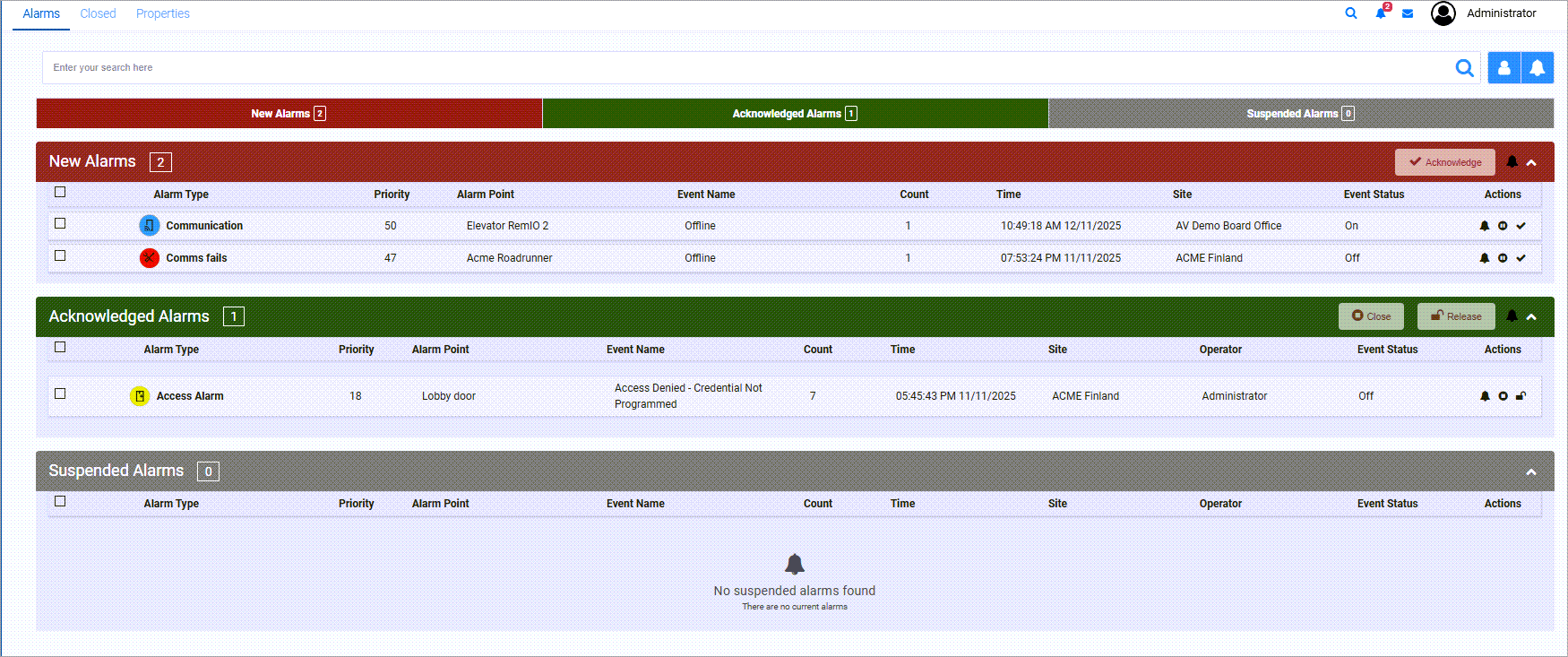
By default, all alarms that are actively managed by you is shown. Click  to view all alarms. Click
  to mute all audio notifications for new and acknowledged alarms.
You can use the search bar to filter and find specific alarms.
Alarms page makes it easier to show or hide alarm lists. Use the three tabs: New Alarms, Acknowledged Alarms, and Suspended Alarms to show or hide these alarm categories. Each tab also shows the number of alarms in that list.

Each column supports filtering and sorting.
-
By default, alarms are sorted by Priority, with the highest priority alarms listed at the top.
-
Any new alarm entry is displayed according to the selected sorting criteria.
When a new alarm is added to the list:
-
The corresponding row flashes in red to draw the operator’s attention.
-
The flashing behavior and duration depend on the notification time configuration for that alarm kind.
All newly generated alarms that have not been acknowledged or suspended are displayed.

Use the header actions to manage alarms. Select the bell icon to mute audio notifications for all current and future New Alarms, including re-notification alerts. Select one more alarms using the check boxes and click Acknowledge on the list header to move these alarms to the Acknowledge Alarms list.
The alarms are displayed in a tabular format with the following columns:
-
Alarm Type - Displays the name of the Alarm Kind.
-
Priority - Indicates the priority level of the alarm.
-
Alarm Point - Shows the name of the object that triggered the alarm.
-
Event Name - Displays the specific event that caused the alarm.
-
Count - Represents the number of times this alarm has been triggered.
-
Time - Shows the date and time of the latest trigger for the alarm.
-
Site - Displays the name of the site to which the point belongs.
-
Event Status - Indicates the status of the trigger that caused the alarm.
-
Actions - Provides quick action buttons to Mute, Suspend, or Acknowledge an individual alarm.
Click any alarm in the list to open it in the Alarm Dashboard.
All alarms acknowledged by the operators are displayed. The header includes the count of acknowledged alarms.

The following action buttons are available:
Close - Select one or more alarms to close using the check boxes. Enter the closing details and click Yes, when prompted.
Release- Select one or more alarms to release them back to the new alarms list. You can change the alarm priority before releasing.
Mute Audio Notifications - Click the bell icon to mute audio alerts for all current and future acknowledged alarms, including re-notifications.
The alarms are displayed in a tabular format with the same columns as new alarms. Additionally, the name of the operator who acknowledged the alarm is shown.
Last column includes action buttons for Mute, Close, and Release for individual alarms.
The row flashes red for re-notification, based on the configured re-notification time.
New alarms that are suspended by operators are displayed. The header includes the count of suspended alarms.

To unsuspend alarms and send them back to the New Alarms list, select one or more alarms using the check boxes and click Unsuspend.