Initial Configuration using WiFi
The initial settings for the Mini Camera are configured using its built-in WiFi hotspot.
- Connect the Mini Camera to any of the two RS485 ports of the S1000 Controller.
-
Press and hold the pinhole button on the back of the Mini Camera using a pin or paperclip, for 2 seconds.
Note: To reset the camera to factory settings, press and hold the pinhole button for at least 6 seconds.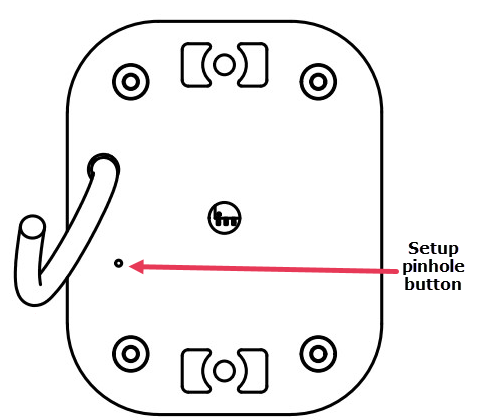
- Using your mobile device or computer, connect to the Pacom MiniCamera WiFi network with the default password 123cam123.
-
Open a browser window and go to http://192.168.4.1.
A page with camera options displays.
-
Set the initial:
- image resolution
- color (gray scale or color)
- OSDP device loop address (1 to 32)
Note: Make a note of this address as you must use the same address when configuring the camera in Sonitrol CORE.
- horizontal and vertical flipping of the images
- update the camera firmware, as needed.
Tip: All configuration changes take effect immediately and there is no need to save. - Press Open Live Video to view a live stream of the camera and adjust the positioning and focus.
- Configure the Mini Camera as an OSDP Camera in Sonitrol CORE.